This section is intended for developers who want to add AriaPaymentSDK functionality to their applications. It describes the steps for successfully installing, configuring, and using the SDK, as well as providing code samples and recommendations.
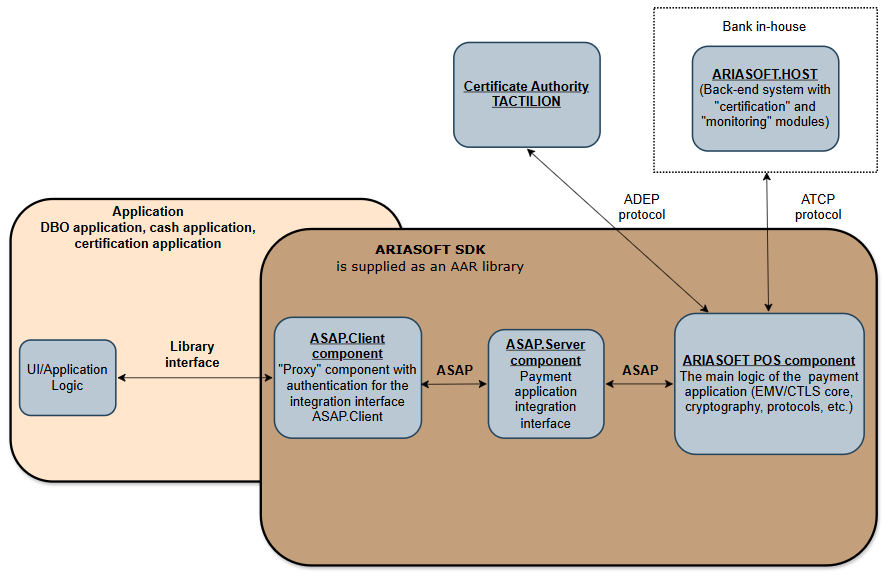
General scheme of interaction of processing and certification nodes with SDK
This diagram shows the transaction processing process using the ARIASOFT SDK and various verification systems.
Bank area:
In the center is a secure internal processing network, which includes the acquirer/processing host and the AriaSoft.HOST system with the "final attestation" module for the ARIASOFT SDK.
Transaction processing goes through the acquirer/processing host and AriaSoft.HOST.
Devices are attested through the existing bank input Gate.
Internal components of the payment SDK
Description of arrows:
ADEP protocol – protocol for interaction with CA NADEKS. Receiving a chain of certificates for interaction with ARIASOFT.HOST. Primary On-Boarding of the Merchant handset is performed.
ATCP protocol – interaction with ARIASOFT.HOST via a registered device (ATCP protocol). Addition of terminal/handset profiles is performed in “packages”.
SDK
The interface to the library is described in the following section.
Initializing the SDK
Getting permissions
The next step is to check what permissions are required for the application and request them from the user.
public String[] getPermissions() {
return AbstractTerminal.getInstance().getPermissions();
}
ACCESS_NETWORK_STATE - access to network connection status information
SDK Configuration
Here you create the SDK configuration and configure various parameters such as: request timeout, package name and server addresses.
Obtaining client and private keys
Client and private keys are used to establish a connection between the application and the server. After establishing this connection with the CA, separate keys are downloaded for client and server authentication with the CA.
Client key:
public void setClientCertificates(String certificates) throws SDKException {
try {
ASAPClient.getInstance().setCertChain(certificates); // Installing the certificate chain
} catch (IncorrectCertChainException | OtherRequestInProgressException e) {
e.printStackTrace();
throw new SDKException(e); // Converting exceptions to the SDKException
}
}
Private key:
public void setClientPrivateKey(String privateKey) throws SDKException {
try {
ASAPClient.getInstance().setPrivateKey(privateKey); // Installing the private key
} catch (OtherRequestInProgressException | IncorrectKeyException e) {
e.printStackTrace();
throw new SDKException(e); // Converting exceptions to the SDKException
}
}
In the new version of the test application, the method implementation is now located inside the AriaPaymentSDK library. These methods must be called strictly after the SDK is successfully initialized, inside the onSuccess() callback:
AriaPaymentSDK.getInstance().init(buildSdkConfig(), new InitCallback() {
@Override
public void onSuccess() {
try {
// Setting occurs HERE
AriaPaymentSDK.getInstance().setClientCertificates(correctCertsPem);
AriaPaymentSDK.getInstance().setClientPrivateKey(correctPrivateKeyPem);
...
Configuration
This method configures the SDK using the passed configuration and context parameters:
SDKConfig sdkConfig = new SDKConfig();
sdkConfig.setRequestTimeout(2*60*1000); // Setting the timeout (in milliseconds)
sdkConfig.setPackageName(getPackageName()); // Getting the package name
sdkConfig.setAriaAddress(new SDKConfig.Address(
BuildConfig.ARIA_URL, // Establishing the ARYA SOFT.HOST address
BuildConfig.ARIA_PORT, // Establishing the ARIASOFT.HOST зort
("http".equals(BuildConfig.ARIA_PROTOCOL) ? Protocol.HTTP : Protocol.HTTPS), // Choosing the HTTP or HTTPS protocol for connecting to ARIASOFT.HOST
("ip".equals(BuildConfig.ARIA_TYPE) ? AddressType.IP : AddressType.DNS) // Selecting an IP or DNS address to connect to ARIASOFT.HOST
));
if (TerminalFactory.getInstance().getDevice() == Device.TAP2PHONE) {
sdkConfig.setCaAddress(new SDKConfig.Address(
T2PRemoteConfig.DEFAULT_IP,
T2PRemoteConfig.DEFAULT_PORT,
(Protocol.HTTP == T2PRemoteConfig.DEFAULT_PROTOCOL || Protocol.HTTP : Protocol.HTTPS), // Choosing the HTTP or HTTPS protocol for connecting Tap2Phone
(AddressType.IP == T2PRemoteConfig.DEFAULT_ADDRESS_TYPE || AddressType.IP : AddressType.DNS) // Selecting an IP or DNS address for Tap2Phone connection
));
} else {
sdkConfig.setCaAddress(new SDKConfig.Address(
BuildConfig.CA_URL,
BuildConfig.CA_PORT,
("http".equals(BuildConfig.CA_PROTOCOL) ? Protocol.HTTP : Protocol.HTTPS), // Choosing the HTTP or HTTPS protocol for connecting to the CA
("ip".equals(BuildConfig.CA_TYPE) ? AddressType.IP : AddressType.DNS) // Selecting an IP or DNS address to connect to the CA
));
}
return sdkConfig;
}
Main changes: passing the context to the SDKConfig constructor and replacing the T2PRemoteConfig class with T2PCARemoteConfig for TAP2Phone configuration.
private SDKConfig buildSdkConfig() {
SDKConfig sdkConfig = new SDKConfig(this); // Context is passed
sdkConfig.setRequestTimeout(2 * 60 * 1000);
sdkConfig.setPackageName(getPackageName());
sdkConfig.setAriaAddress(new SDKConfig.Address(
BuildConfig.ARIA_URL,
BuildConfig.ARIA_PORT,
("http".equals(BuildConfig.ARIA_PROTOCOL) ? Protocol.HTTP : Protocol.HTTPS), // Select HTTP or HTTPS protocol for connecting to ARIASOFT.HOST
("ip".equals(BuildConfig.ARIA_TYPE) ? AddressType.IP : AddressType.DNS) // Select IP or DNS address for connecting to ARIASOFT.HOST
));
if (TerminalFactory.getInstance().getDevice() == Device.TAP2PHONE) {
sdkConfig.setCaAddress(new SDKConfig.Address(
T2PCARemoteConfig.DEFAULT_IP,
T2PCARemoteConfig.DEFAULT_PORT,
(Protocol.HTTP == T2PCARemoteConfig.DEFAULT_PROTOCOL ? Protocol.HTTP : Protocol.HTTPS), // Select HTTP or HTTPS protocol for connecting Tap2Phone
(AddressType.IP == T2PCARemoteConfig.DEFAULT_ADDRESS_TYPE ? AddressType.IP : AddressType.DNS) // Select IP or DNS address for connecting Tap2Phone
));
} else {
sdkConfig.setCaAddress(new SDKConfig.Address(
BuildConfig.CA_URL,
BuildConfig.CA_PORT,
("http".equals(BuildConfig.CA_PROTOCOL) ? Protocol.HTTP : Protocol.HTTPS), // Select HTTP or HTTPS protocol for connecting to CA
("ip".equals(BuildConfig.CA_TYPE) ? AddressType.IP : AddressType.DNS) // Select IP or DNS address for connecting to CA
));
}
return sdkConfig;
}
Server, CA and host addresses
For the demo application, the demo addresses of the CA and ARIASOFT.HOST specified in the table below are used.
Other addresses are used for working with a specific product. To obtain them, please contact helpdesk@tactilion.com.
For international integrations: 45.153.186.184:8181
Server CA
DNS: im1.ca1.nadeks.ru:7777
For international integrations: 45.153.186.184:7771
Code example:
sdkConfig.setAriaAddress(new SDKConfig.Address(
"aria-demo.nadeks.ru" // URL of the ARIASOFT.HOST server
"10443 с SSL/7770 без SSL" // ARIASOFT.HOST server port
SDKConfig.Address.Protocol.HTTP || SDKConfig.Address.Protocol.HTTPS), // HTTP or HTTPS protocol
SDKConfig.Address.AddressType.IP || SDKConfig.Address.AddressType.DNS) // Type of IP or DNS address
));
sdkConfig.setCaAddress(new SDKConfig.Address(
"im1.ca1.nadeks.ru" // CA server URL
"7777" // CA Server Port
SDKConfig.Address.Protocol.HTTP || SDKConfig.Address.Protocol.HTTPS), // HTTP or HTTPS protocol
SDKConfig.Address.AddressType.IP || SDKConfig.Address.AddressType.DNS) // Type of IP or DNS address
));
Initialization
Initialization of the SDK in your activity occurs by using the created configuration with the installation of client certificates and a private key:
try {
AriaPaymentSDK.getInstance().init(getApplicationContext(), sdkConfig); // Initializing the SDK
AriaPaymentSDK.getInstance().setClientCertificates(correctCertsPem); // Installing client certificates
AriaPaymentSDK.getInstance().setClientPrivateKey(correctPrivateKeyPem); // Setting up the client's private key
}
Initialization is now performed in the background, the result is returned via the InitCallback, and the context is no longer passed explicitly (it's already included in SDKConfig).
// Asynchronous initialization with callbacks
AriaPaymentSDK.getInstance().init(buildSdkConfig(), new InitCallback() {
@Override
public void onSuccess() {
try {
// Setting certificates and key INSIDE the callback
AriaPaymentSDK.getInstance().setClientCertificates(correctCertsPem);
AriaPaymentSDK.getInstance().setClientPrivateKey(correctPrivateKeyPem);
// Additional actions for TAP2Phone
if (device == Device.TAP2PHONE) {
new Thread(() -> {
AriaPaymentSDK.getInstance().startLightOnboarding();
setInfoText("Success terminal init", true);
}).start();
} else {
setInfoText("Success terminal init", true);
}
}
Exception Handling and Error Output
If an error occurs, it is handled and an error message is output:
catch (SDKException e) {
setInfoText("SDKException.ERROR_CODE: " + e.getErrorCode().name()); // Handling exceptions and displaying an error message
e.printStackTrace();
return; // Termination of execution in case of an error
}
In the new version, error handlers have been separated:
SDK initialization errors → handled in onError()
Certificate/key setting errors → handled in catch (SDKException)
Method for running the application in the main thread
This method is designed to execute code in the main thread of the Android application to avoid multithreading issues and ensure smooth operation of the application.
// Method for executing code in the main thread
private void mainThread(Runnable runnable) {
// Creates a new Handler associated with the main thread's main message loop
new Handler(Looper.getMainLooper()).post(runnable);
}
In the new version, the mainThread() method has been completely removed from the code. Instead, the standard Android API runOnUiThread() is now used.
This method is responsible for starting the onboarding process and handling the result (success or error) using the SDK in a separate thread.
private void startOnboarding() {
// We set the information text informing about the beginning of the process
setInfoText("Start onboarding. Please wait.", false);
// Creating a new thread to perform the task of starting the onboarding process
new Thread(() -> {
// Starting the onboarding process using AriaPaymentSDK
AriaPaymentSDK.getInstance().startOnboarding(MainActivity.this, new AriaPaymentSDK.OnboardingCallback() {
@Override
public void success() {
// If the process was successful, we update the information text
setInfoText("Success onboarding", true);
}
@Override
public void error(Throwable throwable) {
// If an error has occurred, we update the information text with the error code
setInfoText("Error onboarding: " + ((SDKException) throwable).getErrorCode().name(), true);
}
});
}).start(); // Launching the created stream
}
In the new version, the API has been simplified, and the SDK now manages the context independently.
Steps to follow (for self-testing when initializing the SDK)
Add the required permissions to AndroidManifest.xml.
Initialize the SDK in your activity.
Check and request missing permissions:
Use the checkAndCollectDenyPermission method to check for the required permissions.
Use the requestDenyPermissions method to request missing permissions.
Create and configure the SDKConfig configuration object:
Set the request timeout.
Set the app package name.
Set the ARIASOFT.HOST and CA (Certificate Authority) server addresses with the appropriate protocols and address types.
Initialize the SDK and install client certificates and private key:
Call the init method to initialize the SDK.
Install client certificates using the setClientCertificates method.
Set the client private key using the setClientPrivateKey method.
Error Handling:
Handle SDKExceptions to determine if errors occurred during initialization and display an error message.
Main operations
These operations provide a full range of functionality for managing transactions, checking balances, reconciling totals, generating reports and receiving logs, which allows you to effectively use the SDK for various financial transactions in the POS system.
To launch the selected method, you need to pass the current Activity and requestCode to the start method, by which you can get a response to the request in onActivityResult.
The onActivityResult method accepts the following three variables:
Name
Description
Format
requestCode
request code
string
resultCode
result code
string
data
returned data
string
Payment
The payment operation is used to perform a payment transaction where the amount and currency are specified.
```Java String token = UUID.randomUUID().toString().replace("-", ""); // Generates a unique token for the operation AriaPaymentSDK.getInstance().sale(amount, currency, token).start(activity, 100); // Starts the payment operation with the specified amount, currency, and token ```
The method operates with the following variables:
Name
Description
Format
amount
amount of the balance in the minimum allowable units
amount of the balance in the minimum allowable units
long
currency
currency
int
trxNumber
unique identifier of the operation
string
The result of the operation will be the return value in onActivityResult under the specified requestCode as a Response of type SaleResponse.
Cancel
The cancel payment operation is used to cancel a payment transaction.
```Java String token = UUID.randomUUID().toString().replace("-", ""); // Generates a unique token for the operation AriaPaymentSDK.getInstance().cancel(amount, currency, lastTrxNumber, token).start(activity, 100); // Starts the cancel payment operation with the specified amount, currency, transaction number and token ```
amount of the balance in the minimum allowable units
long
currency
currency
int
trxNumber
unique identifier of the operation
string
invoiceNumber
receipt number
string
The result of the operation will be the return value in onActivityResult under the specified requestCode as a Response of type VoidResponse.
Refund
The refund operation is used to return a previously paid amount to the client.
String token = UUID.randomUUID().toString().replace("-", ""); // Generates a unique token for the operation
AriaPaymentSDK.getInstance().refund(amount, currency, lastTrxNumber, token).start(activity, 100); // Starts the refund operation with the specified amount, currency, transaction number and token
});
amount of the balance in the minimum allowable units
long
currency
currency
int
trxNumber
unique identifier of the operation
string
serverTrxId
RRN, unique identifiers on the bank host side
string
The result of the operation will be the return value in onActivityResult under the specified requestCode as a Response of the RefundResponse type.
Balance
The balance check operation is used to get the current balance.
setInfoText("Start balance operation. Please wait."); // Sets the information text about the start of the balance check operation
String token = UUID.randomUUID().toString().replace("-", ""); // Generates a unique token for the operation
AriaPaymentSDK.getInstance().balance(currency, token).start(activity, 100); // Starts the balance check operation with the specified currency and token
The result of the operation will be the return value in onActivityResult under the specified requestCode as a Response of the BalanceResponse type.
Reconciliation of totals
The reconciliation operation is used to reconcile transactions.
setInfoText("Start reconciliation operation. Please wait."); // Sets the text of the information about the start of the reconciliation operation
String token = UUID.randomUUID().toString().replace("-", ""); // Generates a unique token for the operation
AriaPaymentSDK.getInstance().reconciliation(token).start(activity, 100); // Starts the reconciliation operation with the specified token
The report operation is used to generate a transaction report for a certain period or according to certain criteria.
setInfoText("Start report operation. Please wait."); // Sets the text of the information about the beginning of the report receipt operation
AriaPaymentSDK.getInstance().report(null, 3).start(activity, 100); // Starts the operation of getting a report with the specified parameters
The result of the operation will be the return value in onActivityResult under the specified requestCode as a Response of the ReportResponse type.
Response Logs
The log operation is used to get response logs from the SDK for debugging and analysis.
setInfoText("Start log operation. Please wait."); // Sets the information text about the start of the log operation
AriaPaymentSDK.getInstance().log(token).start(activity, 100); // Starts the log operation with the specified token
The result of the operation will be the return value in onActivityResult under the specified requestCode as a Response of type LogResponse.
Additional Operations
Additional Operations are a series of service procedures that must be implemented and made available in a special "service section" or in the "administrative menu" of the Technical Software (TS).
Checking certificates
This function initializes the button that checks if the certificates are uploaded.
boolean success = AriaPaymentSDK.getInstance().checkOnboarding(YOUR_ACTIVITY); // Checks if the certificates need to be uploaded
String message = success ? "No need to upload the certificates" : "You need to download the certificates"
setInfoText(message); // Displays a message about the verification result
actionOnClick(() -> {
setInfoText("Start certificates checking. Please wait.", false);
boolean success = AriaPaymentSDK.getInstance().checkOnboarding();
String message = success ?
"No need to upload the certificates" :
"You need to download the certificates";
setInfoText(message, true);
});
The checkOnboarding() method no longer requires passing the activity context
An intermediate notification about the start of the operation has been added
The entire operation is performed in a background thread via actionOnClick()
Download Certificates
This function initializes a button that downloads certificates through the onboarding flow.
AriaPaymentSDK.getInstance().startOnboarding(YOUR_ACTIVITY, new AriaPaymentSDK.OnboardingCallback() { // Starts the onboarding process with the specified context and callback
@Override
public void success() {
runOnUiThread(() -> setInfoText("Success onboarding")); // Updates the information text field when onboarding is successful
}
@Override
public void error(Throwable throwable) {
runOnUiThread(() -> setInfoText("Error onboarding: " + ((SDKException) throwable).getErrorCode().name())); // Updates the information text field when an error occurs during the onboarding process, displaying the error code
}
});
The function of getting information about certificates is implemented by initializing a button that, when pressed, collects information about certificates and displays it as text.
// Getting information about certificates via SDK
CertificateChain[] certificateChains = AriaPaymentSDK.getInstance().getCertificateInfo(activity.getApplicationContext());
// Create a StringBuilder object to build a string of certificate information
StringBuilder certificatesInfo = new StringBuilder();
for (CertificateChain certificateChain : certificateChains) { // Iterates through each certificate chain and adds information about it to the StringBuilder
certificatesInfo.append(certificateChain.getType().name()).append(": ").append("\n");
if (certificateChain.getChain() == null || certificateChain.getChain().isEmpty()) {
certificatesInfo.append("--- NULL\n");
continue;
}
for (CertificateInfo certificate : certificateChain.getChain()) {
certificatesInfo
.append("--- ")
.append(certificate.getType()).append("; ")
.append(certificate.getStatus()).append("; ")
.append(certificate.getExpirationDate()).append(";")
.append("\n");
}
};
CertificateChain[] certificateChains = AriaPaymentSDK.getInstance().getCertificateInfo();
StringBuilder certificatesInfo = new StringBuilder();
for (CertificateChain certificateChain : certificateChains) {
// Add certificate chain type
certificatesInfo.append(certificateChain.getType().name())
.append(": ")
.append("\n");
// Check for certificates in the chain
if (certificateChain.getChain() == null || certificateChain.getChain().isEmpty()) {
certificatesInfo.append("--- NULL\n");
continue;
}
for (CertificateInfo certificate : certificateChain.getChain()) {
certificatesInfo.append("--- ")
.append(certificate.getType()).append("; ")
.append(certificate.getStatus()).append("; ")
.append(certificate.getExpirationDate()).append(";")
.append("\n");
}
}
setInfoText(certificatesInfo.toString(), false);
});
});
}
Key differences from version 1.0.29.111:
No dependency on context
Simplified call without parameters
Unified output information format
More detailed information about each certificate
Clear Data
This function initializes a button that starts the data clearing process.
AriaPaymentSDK.getInstance().format(getApplicationContext(), new AriaPaymentSDK.FormatingCallback() { // Starts the data cleaning (formatting) process with the specified context and callback
@Override // If successful, the method displays a corresponding message
public void success() {
runOnUiThread(() -> setInfoText("Formatted SUCCESS"));
}
@Override // In case of an error, the method displays a corresponding message
public void failure() {
runOnUiThread(() -> setInfoText("Formatted FAILED"));
}
});
private void initFormatButton() {
findViewById(R.id.format).setOnClickListener(view -> {
actionOnClick(() -> {
// Notification about the process start
setInfoText("Start formatting. Please wait.", false);
// API call for formatting
AriaPaymentSDK.getInstance().format(new AriaPaymentSDK.FormatingCallback() {
@Override
public void onSuccess() {
// Handle successful completion
runOnUiThread(() -> setInfoText("Formatted SUCCESS", true));
}
@Override
public void onError() {
// Handle error
runOnUiThread(() -> setInfoText("Formatted FAILED", true));
}
});
});
});
}
Key differences:
Simplified API call
Standardized callbacks
Improved UX
Thread safety
Terminal Selection (or T2P)
This function initializes the device selection button handlers.
findViewById(R.id.p2000l).setOnClickListener(view -> device = Device.P2000L); // Listener to the P2000L terminal selection button
findViewById(R.id.t1).setOnClickListener(view -> device = Device.T1); // Listener to the T1 terminal selection button
findViewById(R.id.emulator).setOnClickListener(view -> device = Device.EMULATOR); // Listener to the emulator selection button
findViewById(R.id.tap_2_phone).setOnClickListener(view -> device = Device.TAP2PHONE); // Listener on the Tap2Phone selection button
findViewById(R.id.sunmi_p2).setOnClickListener(view -> device = Device.SUNMI_P2); // Listener to the selection button of the Sunmi P2 terminal
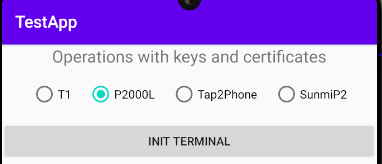
findViewById(R.id.init_terminal).setOnClickListener(view -> {
setInfoText("Start terminal init. Please wait.", false);
TerminalFactory.getInstance().initTerminal(device); // Initializes the terminal with the device selected earlier
ArrayList<String> denyPermissions = checkAndCollectDenyPermission( // checks and collects a list of denied permissions for the SDK
AriaPaymentSDK.getInstance().getPermissions()
);
requestDenyPermissions(denyPermissions); // asks the user for the permissions that were collected in the previous step
});
}
private void initTerminalButtons() {
Spinner deviceSpinner = findViewById(R.id.device_spinner);
// Dynamically creating a list of devices from the enum
String[] deviceNames = Arrays.stream(Device.values())
.map(Device::name)
.toArray(String[]::new);
// Setting up the adapter for the Spinner
ArrayAdapter<String> adapter = new ArrayAdapter<>(this,
android.R.layout.simple_spinner_item,
deviceNames);
adapter.setDropDownViewResource(android.R.layout.simple_spinner_dropdown_item);
deviceSpinner.setAdapter(adapter);
// Restoring previous selection
int selectedPosition = Arrays.asList(deviceNames).indexOf(device.name());
if (selectedPosition != -1) {
deviceSpinner.setSelection(selectedPosition);
}
// Device selection handler
deviceSpinner.setOnItemSelectedListener(new AdapterView.OnItemSelectedListener() {
@Override public void onNothingSelected(AdapterView<?> parent) {}
@Override
public void onItemSelected(AdapterView<?> adapterView, View view, int position, long id) {
device = Device.values()[position];
}
});
// Initialize terminal
findViewById(R.id.init_terminal).setOnClickListener(view -> {
setInfoText("Start terminal init. Please wait.", false);
try {
TerminalFactory.getInstance().initTerminal(device);
} catch (Exception e) {
setInfoText("Fail terminal init", true);
return;
}
ArrayList<String> denyPermissions = checkAndCollectDenyPermission(
AriaPaymentSDK.getInstance().getPermissions()
);
requestDenyPermissions(denyPermissions);
});
}
Features of the new implementation:
Dynamic device list (New devices automatically appear in the list without code changes)
Improved state management
Enhanced error handling (Prevents further actions on initialization error, more informative response)
The printResponse method processes the different types of responses (Response) and updates the user interface with information about the operation performed.
// Checking the response type: SaleResponse
if (response instanceof SaleResponse) {
operationName = "Sale"; // Setting the operation name
check = ((SaleResponse) response).getPrintData(); // Getting data for printing
lastTrxNumber = ((SaleResponse) response).getUniqTrxNumber(); // Saving a unique transaction number
}
// Checking the response type: BalanceResponse
else if (response instanceof BalanceResponse) {
operationName = "Balance"; // Setting the operation name
check = ((BalanceResponse) response).getPrintData(); // Getting data for printing
}
// Checking the response type: VoidResponse
else if (response instanceof VoidResponse) {
operationName = "Void"; // Set the operation name
check = ((VoidResponse) response).getPrintData(); // Getting data for printing
}
// Checking the response type: RefundResponse
else if (response instanceof RefundResponse) {
operationName = "Refund"; // Set the operation name
check = ((RefundResponse) response).getPrintData(); // Getting data for printing
}
// Checking the response type: ReconciliationResponse
else if (response instanceof ReconciliationResponse) {
operationName = "Reconciliation"; // Set the operation name
check = ((ReconciliationResponse) response).getPrintData(); // Getting data for printing
}
// Checking the response type: LogResponse
else if (response instanceof LogResponse) {
operationName = "Log"; // Set the operation name
check = ((LogResponse) response).getPrintData(); // Getting data for printing
}
// Checking the response type: ReportResponse
else if (response instanceof ReportResponse) {
operationName = "Report"; // Set the operation name
check = ((ReportResponse) response).getPrintData(); // Getting data for printing
}
}
To provide a balance response in a POS-system, the BalanceResponse class is used. It contains fields for the amount, currency, operation code, response code, transaction status, print data, and date/time on the external device.
Name
Description
Format
amount
balance amount (in minimum acceptable units)
long
currency
currency
int
operationCode
operation
int
respCode
processing response code
string
trxStatus
status by processing response code
string
printData
data for printing
string
extDeviceDateTime
date and time on external device
string
LogResponse
The logResponse class is used to store response data in the POS system. The class contains the following fields:
Name
Description
Format
uniqTrxNumber
unique transaction number
string
amount
transaction amount (in minimum acceptable units)
long
currency
currency code
int
hostDateTime
date and time on the server
string
readType
reading type
int
pan
PAN (Primary Account Number)
string
authCode
authorization code
string
refNumber
reference number
string
respCode
processing response code
string
trxStatus
status by processing response code
string
extDeviceDateTime
date and time on external device
string
extDeviceId
external device identifier
string
merchantId
seller id
string
printData
data for printing
string
serverTrxId
RRN, unique identifiers on the bank host side
string
acquiringBank
name of acquirer bank
string
invoiceNumber
receipt number
string
ReconciliationResponse
The ReconciliationResponse class is designed to work with response data for reconciliation operations in the POS system. The class methods manage information about transactions, their status, device and seller data.
The ReconciliationResponse class contains the following fields:
Name
Description
Format
operationCode
operation code
int
respCode
processing response code
string
trxStatus
status by processing response code
string
printData
data for printing
string
merchantId
merchant ID
string
extDeviceId
external device ID
string
uniqTrxNumber
unique transaction number
string
extDeviceDateTime
external device date and time
string
RefundResponse
The RefundResponse class is used for data with responses to return transactions in the POS system.
The RefundResponse class contains the following fields:
Name
Description
Format
amount
refund amount (in minimum allowed units)
long
currency
currency code
int
hostDateTime
date and time on server
string
readType
reading type
int
pan
PAN number (Primary Account Number)
string
authCode
authorization code
string
refNumber
reference number
string
operationCode
operation code
int
operationCode
transaction code
int
respCode
processing response code
string
trxStatus
processing response code status
string
printData
printable data
string
merchantId
merchant identifier
string
extDeviceId
external device identifier
string
uniqTrxNumber
unique transaction number
string
extDeviceDateTime
date and time on external device
string
origTrxNumber
unique transaction number from the external device side
string
serverTrxId
RRN, unique identifiers on the bank host side
string
acquiringBank
name of acquirer bank
string
invoiceNumber
receipt number
string
ReportResponse
The ReportResponse class is used to store response data related to POS reporting operations.
The class contains the following fields:
Name
Description
Format
commandMode
report option
int
printData
print data
string
uniqTrxNumber
unique transaction code
string
trxStatus
status by processing response code
string
SaleResponse
The SaleResponse class is used to store response data related to payment and sales transactions in the POS system.
Name
Description
Format
uniqTrxNumber
unique transaction number
string
amount
transaction amount (in minimum allowed units)
long
currency
currency code
int
hostDateTime
date and time on the server
string
readType
read type
int
pan
PAN (Primary Account Number)
string
authCode
authorization code
string
refNumber
reference number
string
respCode
processing response code
string
trxStatus
status by processing response code
string
extDeviceDateTime
date and time on external device
string
extDeviceId
external device identifier
string
merchantId
seller identifier
string
printData
printable data
string
serverTrxId
RRN, unique identifiers on the bank host side
string
acquiringBank
name of acquirer bank
string
invoiceNumber
receipt number
string
VoidResponse
The VoidResponse class is used to store response data related to payment cancellation in the POS system.
The VoidResponse class contains the following fields:
Name
Description
Format
amount
refund amount (in minimum allowed units)
long
currency
currency code
int
operationCode
transaction code
int
respCode
processing response code
string
trxStatus
processing response code status
string
printData
printable data
string
merchantId
merchant identifier
string
extDeviceId
external device identifier
string
uniqTrxNumber
unique transaction number
string
extDeviceDateTime
date and time on external device
string
serverTrxId
RRN, unique identifiers on the bank host side
string
acquiringBank
name of acquirer bank
string
invoiceNumber
receipt number
string
Test application
How to work with the example
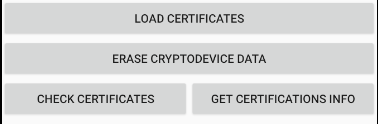
The test application has all the necessary functionality for testing, specifically:
Initialization of a specific terminal model
Download, check and get information about existing certificates
And also a button to clear data from the device. (Erase Cryptodevice Data)
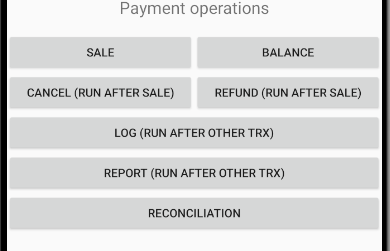
Payment transactions
More information about payment transactions is provided in this section.
Video demonstration
Video demonstration of the main functions of the test application:
Error codes
The ErrorReason enumeration is used to represent various error reasons that may occur during the operation of the POS system. Each error reason has a corresponding integer value.
Error type
Error code
Description
CANCELLED_BY_USER_OR_USER_TIMEOUT
0
the operation was cancelled by the user or timed out
REFUSED_BY_HOST
1
the operation was rejected by the host (server)
REFUSED_BY_TERMINAL
2
the operation was rejected by the terminal
NO_ERROR
3
no errors
OTHER_ERROR
4
other error
Feedback
f you have any problems or questions about the SDK/test application, please contact us by email helpdesk@tactilion.com.